7-day free trial · macOS 13+ · Apple Silicon & Intel · No account required
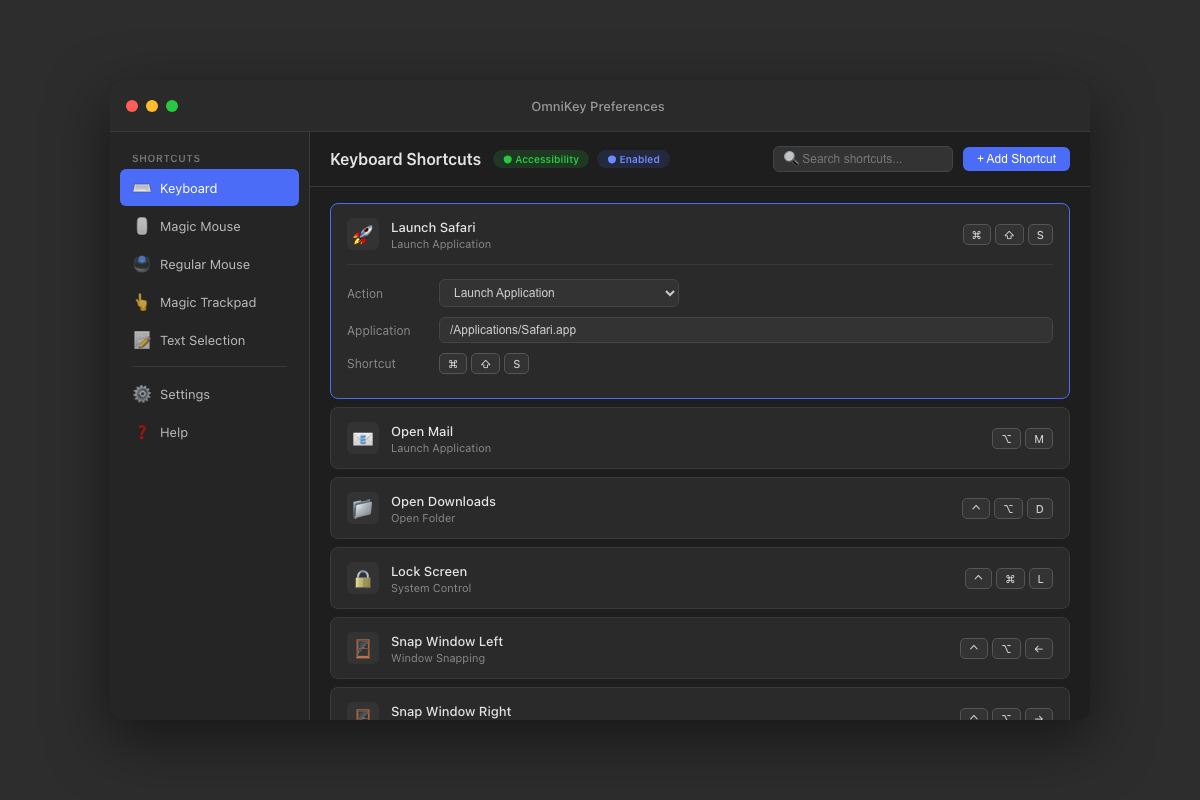
Create custom inputs using keyboard, mouse, trackpad, Magic Mouse, or directly from the menu bar.
Any key + modifier combo including Cmd, Option, Control, Shift. Even chord sequences for two-step combos.
18 combinations: clicks, holds, and directional drags on left, middle, and right mouse buttons.
17 gestures including pinch, rotate, smart zoom, and 2/3/4-finger swipes. Works regardless of macOS System Settings.
7 gestures: left/right swipe, smart zoom, and 4-directional scrolling on your Magic Mouse.
Direct access to Keep Awake, Scratchpad, Dev Servers, Finder Tools, Clipboard, and Developer Tools.
From launching apps to controlling windows, running scripts to managing clipboard history.
Launch apps, bring to front, open folders
Close, minimize, maximize, arrange all
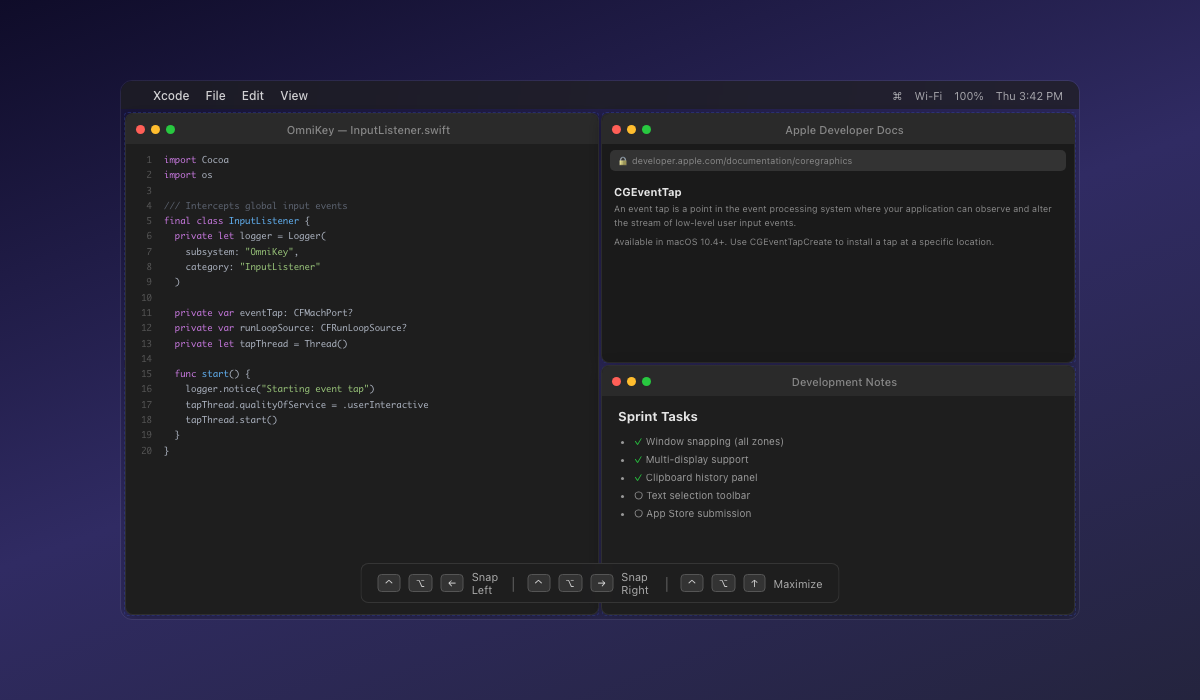
Snap to halves, thirds, quarters, corners
Move windows between displays
Expose, spaces, Launchpad, notifications
Lock, sleep, screensaver, dark mode, keep awake
Quick screenshot selection tool
Copy, paste, undo, redo, find, save
Shell commands, AppleScript, Shortcuts
Play, pause, volume, brightness
Remap any key to another key
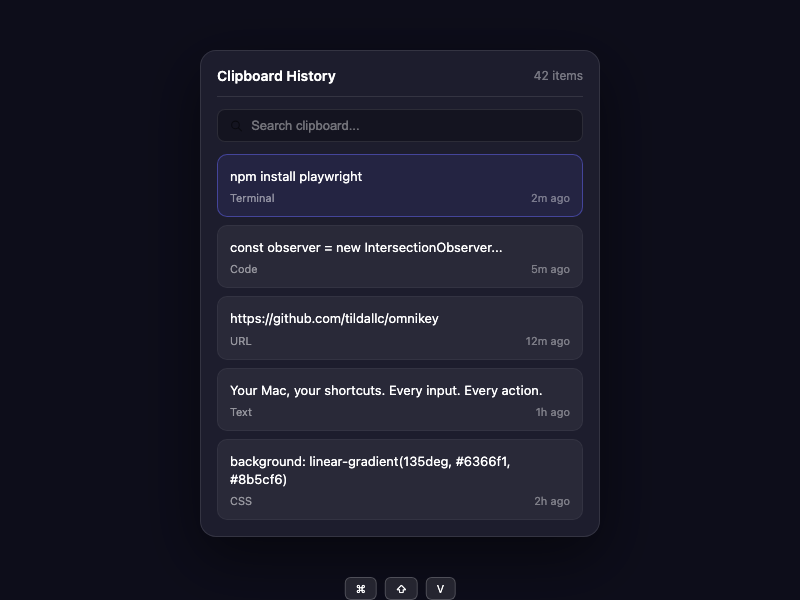
Searchable clipboard history panel
Never lose a copied item again. Instant access to everything you've copied, right from a keyboard shortcut.
Type to filter through your entire clipboard history. Find that URL, code snippet, or text you copied hours ago in milliseconds.
Click any item to paste it directly into the active app. No extra steps — select and it's pasted.
See which app each item was copied from with its icon, plus relative timestamps so you always know the context.
Open with a shortcut, navigate with arrow keys, press Enter to paste. Your hands never leave the keyboard.
History persists across app restarts. Configure the maximum number of items to keep (default 50). Clear history anytime.
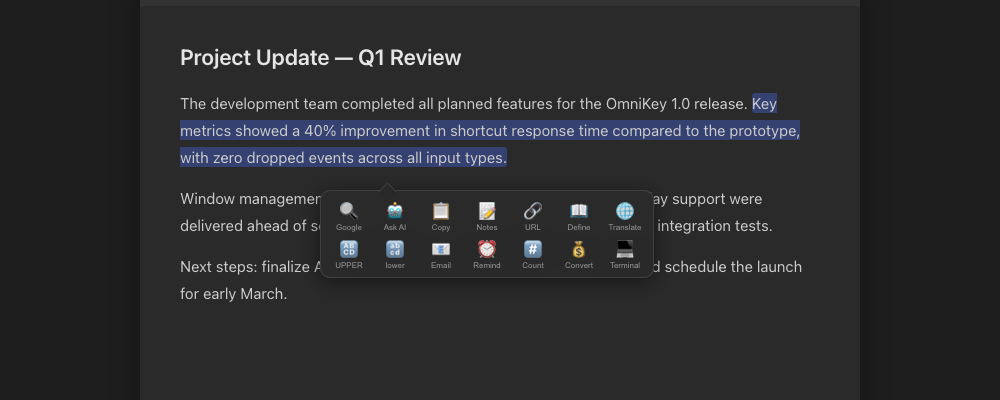
A floating toolbar with 22 powerful tools appears whenever you select text.
Search
Google, Bing, DDG
AI Query
ChatGPT, Claude, Gemini
Copy
Normal, Plain text
Notes
Send to Notes app
Transform
Upper, Lower, Title
Utilities
Define, Translate, Count
Organize your windows with precision. Snap, arrange, and switch with ease.
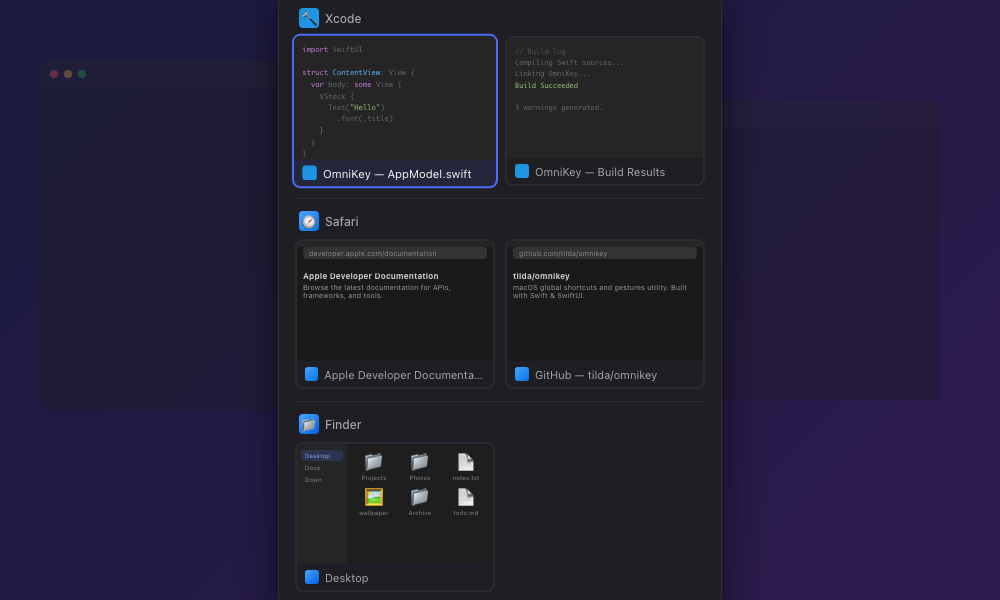
Alt-Tab replacement with visual preview of all open windows across spaces.
Move windows between displays instantly. Perfect for multi-monitor setups.
Remember and restore window positions. Never lose your layout again.
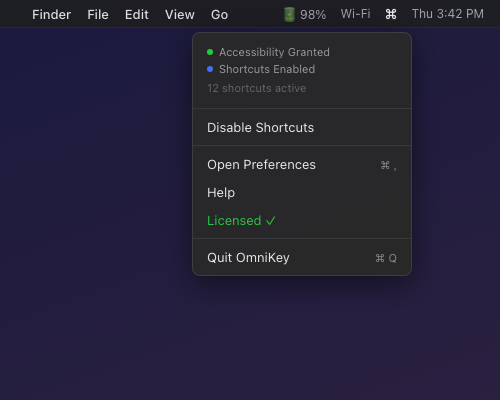
OmniKey lives quietly in your menu bar, ready when you need it. No dock icon, no clutter — just instant access to all your shortcuts.
Prevent your Mac from sleeping, dimming, or turning off the display. Toggle it from the menu bar or trigger it with any shortcut or gesture.
Prevents system sleep and display off
Toggle from menu bar with checkmark indicator
Assign any keyboard shortcut or gesture to toggle
No background app needed — built right into OmniKey
No need for a separate keep-awake app. OmniKey handles it natively with zero extra overhead.
A smart note-taking panel with inline calculations, markdown formatting, and instant export. More than a text buffer — it's a thinking tool.
Inline math — type 524 / 89 = and see the result instantly in green
Markdown-light — # headers, **bold**, `code`, and auto-linked URLs
Paper-like design — clean typography with proper line spacing, word/character/line count
Export — save as text file, auto-saves as you type, remembers position and size
Budget
hosting: 29
domain: 12
design: 450
29 + 12 + 450 = 491
491 * 12 = 5892
TODO update invoice
https://stripe.com/billing
Monitor and manage every localhost server running on your Mac. See what's listening, open it, copy the URL, or stop it — all from one panel.
Auto-detects Node, Python, Ruby, Go, Rust, Deno, Bun, and more
Auto-refresh with configurable intervals (1s to 30s)
Open in browser, copy URL, stop (SIGTERM), or force kill (SIGKILL)
Smart filtering hides macOS system daemons — only shows real dev servers
Open from menu bar, keyboard shortcut, or any gesture
A built-in screensaver with three stunning styles. Keep your Mac awake while protecting your display.
Minimal — clean floating clock with drift animation to prevent burn-in
Flip Clock — retro split-flap digits with AM/PM, inspired by classic mechanical clocks
Ambient Orb — mesmerizing glowing rings with color-shifting animation at 30fps
Show clock, date, battery, Keep Awake status, and custom message — all configurable
Essential developer utilities built into your menu bar. No more hunting through Terminal or System Settings.
Dev Servers — monitor all localhost servers with auto-refresh, one-click stop and browser open
Metal HUD — toggle the system-wide FPS/GPU overlay with one click
Terminal Here — open Terminal at the current Finder folder
Clear Derived Data — wipe Xcode build cache with confirmation dialog
Flush DNS and Open Simulator — common dev tasks, one click away
Power features for power users.
Toggle hidden files and desktop icons from the menu bar. Perfect for clean screenshots and presentations. Finder auto-relaunches.
Side Back, Side Forward, and Button 5 — with click, hold, and drag gestures. 18 extra gesture combinations for gaming and productivity mice.
Browser Back and Forward actions assignable to any gesture. Navigate history with a swipe, drag, or click — no keyboard needed.
Enable or disable keyboard, mouse, trackpad, and Magic Mouse shortcuts independently. Keep trackpad gestures active while disabling mouse gestures.
Visual feedback near the cursor when a gesture fires. Shows the direction arrow, action name, and gesture type — then fades away.
30 min, 60 min, indefinite, Screen On (for screenshots), or With Screen Saver. Five ways to keep your Mac awake for any situation.
Metal HUD toggle, Terminal Here, Clear Xcode Derived Data, Flush DNS Cache, and iOS Simulator launcher — all from the menu bar.
Show, hide, and reorder every menu bar item. Choose from 8 icon styles including Key, Bolt, Diamond, and Atom.
Browse and paste recent clipboard items directly from the menu bar. Click any item to paste it instantly into the active app.
Everything you need to know about OmniKey.
OmniKey is a macOS menu bar utility that lets you create system-wide keyboard shortcuts, mouse gestures, trackpad gestures, and Magic Mouse gestures. You can launch apps, run scripts, manage windows, control media, and much more -- all from custom hotkeys and gestures.
No. OmniKey is fully offline and collects zero data. There are no analytics, no telemetry, and no network calls. Your shortcuts configuration stays on your Mac.
OmniKey requires macOS 13.0 (Ventura) or later. It runs natively on both Apple Silicon and Intel Macs.
OmniKey supports launching apps, bringing windows to front, running shell commands and AppleScript, window management (snap, maximize, move between displays), clipboard history, an Alt+Tab window switcher with browser tab support, text selection toolbar with AI integration, key remapping, media controls, keyboard chord sequences, Keep Awake to prevent your Mac from sleeping, and Dev Servers to monitor and manage localhost servers.
Yes. OmniKey uses raw touch detection that bypasses macOS system gesture consumption. 3-finger and 4-finger swipes work regardless of your Mission Control, Spaces, or other System Settings configurations.
Yes. OmniKey includes a built-in Keep Awake feature that prevents your Mac from sleeping and the display from turning off. Toggle it from the menu bar or assign any keyboard shortcut or gesture to control it. No separate app needed.
OmniKey's Scratchpad is a quick note-taking panel accessible from the menu bar or via any shortcut or gesture. Jot down ideas instantly, share them with other apps, and everything auto-saves. It stays available across all spaces without leaving your current workflow.
Dev Servers is a built-in localhost server monitor for developers. It automatically scans for processes listening on TCP ports, shows process name, port, and PID, and lets you stop servers, open them in your browser, or copy their URL. It features auto-refresh with configurable intervals and filters out macOS system processes.
No Analytics
Zero tracking, zero telemetry
No Network
Works completely offline
No Data
Your shortcuts stay local
OmniKey doesn't collect any data. No analytics. No network requests. Your keyboard shortcuts and configurations stay on your Mac.
Research shows that keyboard shortcuts and gesture-based workflows dramatically improve productivity.
Faster Task Completion
Users who rely on keyboard shortcuts complete tasks up to 64% faster than mouse-only users, according to a Brainscape productivity study.
Saved Per Year
The average knowledge worker can save approximately 8 working days per year by switching from mouse navigation to keyboard shortcuts, per UX research by the Nielsen Norman Group.
Per Action Saved
Each keyboard shortcut saves an average of 2 seconds compared to the equivalent mouse action. Across thousands of daily actions, this compounds significantly.
"The key to productivity on a Mac isn't working harder — it's removing friction between thought and action. Every time you reach for the mouse, you break flow."
"Gesture-based interfaces reduce cognitive load by mapping physical movements to digital actions. The body remembers what the mind forgets."
Every Input Device
Keyboard, mouse, trackpad, and Magic Mouse shortcuts in one app — no context switching between tools
50+ Built-in Actions
Window management, clipboard history, app switching, media controls, Finder tools — all assignable to any gesture
System-Wide
Shortcuts work in every app, on every screen — no per-app configuration needed
Muscle Memory
Gesture-based shortcuts build motor memory faster than keyboard combos — pinch to close, swipe to switch
One app. One price. Free updates.
Direct download. 7-day free trial.
Download for MacJoin thousands of users who have transformed their workflow with OmniKey.
Download OmniKey v3.3.24Version 3.3.24 • macOS 13.0+ • Apple Silicon & Intel • Instant Download